
Step-by-step guide
-
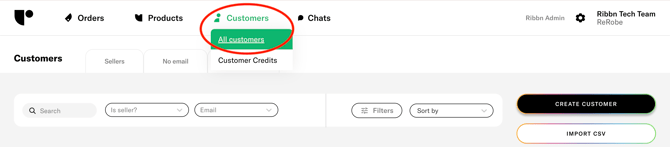
Go to Customers in the admin panel.
-
Use the search bar to find the two seller accounts you want to merge.
-
Select both sellers by marking them in the list.
-
In the bulk action bar, click Actions.
-
Select Merge customers.

-
Choose the target account you want to keep as the primary account.
-
Confirm the merge to move the data from the source account into the selected one.
What happens after merging?
-
The selected account becomes the primary seller account.
-
Data from the other account is moved into the primary account.
-
The old account is not deleted, but its email/profile will be renamed with
old_in the system.
Important
Use this feature with caution. Always double check that you selected the correct accounts before confirming the merge to ensure the data ends up in the right seller account.