
While we still recommend adding products to your inventory beforehand for better inventory management and reporting, this feature allows you to quickly create custom products at checkout when needed.
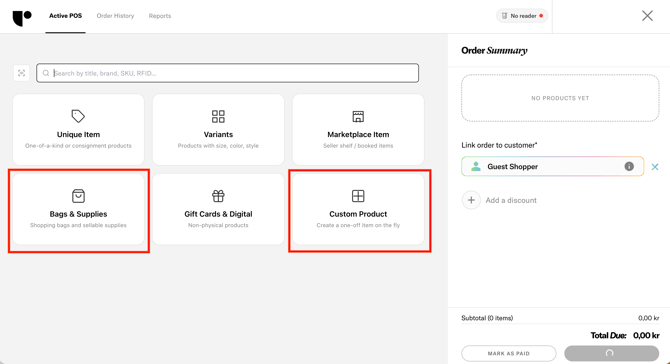
The POS in desktop view includes two new buttons:
-
Custom Product
-
Add product with VAT
-
Add product with Commission
-
-
Add bags
These options allow you to create items on the fly and immediately add them to the order.
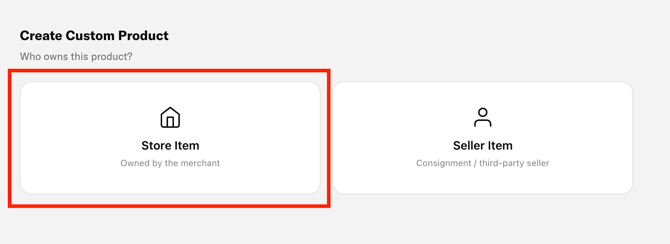
Add a Store Item (product with VAT)
Use Store Item when the item is owned by the store.
Because the store owns the item, VAT must be applied according to local regulations.
How it works
-
On the POS screen, click Add product with VAT.
-
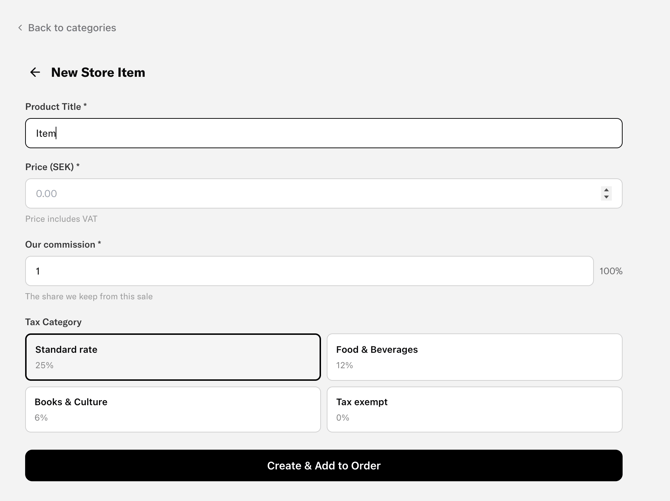
A form will open where you can create the item.
-
Fill in the required fields:
Product Title
The default title is “Item”, which will also appear as Item on the receipt.
You can change the name if you want a more descriptive title.
Price
Enter the final price the customer should pay, including VAT.
Commission
Since the item belongs to the store, the commission should normally be 100%, meaning the store keeps the full amount.
Tax Category
Choose the correct VAT category:
-
25% – standard rate (commonly used for clothes, accessories, and most retail products)
-
12% – commonly used for food and beverages
-
6% – books and culture
-
0% – tax exempt
Final step: Click Create & Add to Order.
The product will now be added to the order as a line item.
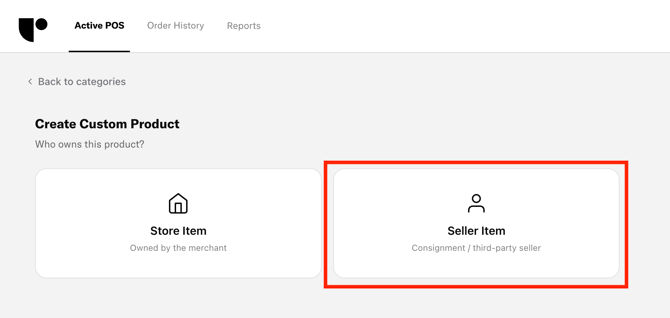
Add a Seller Item (Product with Commission)
Use Add Seller Item when the product belongs to a seller and the store takes a commission from the sale.
How it works
-
From the POS screen, click Add Seller Item.
-
Select the seller who owns the item.
-
If the seller is not already in the system, you can create a new seller during this step.
-
-
Fill in the product information:
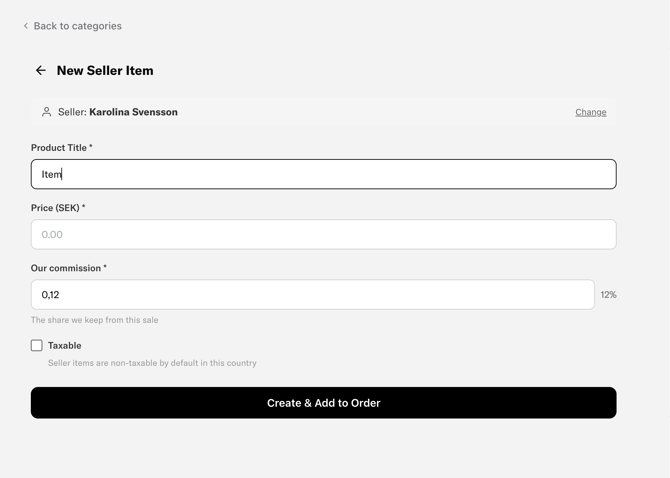
Product Title
Enter the name of the item - this is especially useful in the case where the customer would return/exchange the item, and if you want the seller to have a clear idea of what has been sold under her/his name.
Price
Enter the final selling price.
Commission
Enter the percentage your store keeps from the sale.
Example:
If you enter 12% commission, the store keeps 12% and the seller receives 88% of the sale.
Click Create & Add to Order.
The item will be linked to the seller and added to the order.
Add Bags
A new Add Bags button is also available in the POS.
This allows you to quickly add bag charges during checkout without needing to create a product beforehand.
See here how to add bags.
Complete the Checkout
After adding all necessary items to the order:
-
Review the order lines in the POS.
-
Confirm the total amount.
- Link a customer so they can receive an order confirmation per mail instead of printing a reciept.
-
Charge the customer.
This new functionality allows you to complete sales quickly and flexibly, even when products are not pre-registered in your inventory.
For best results, we still recommend keeping most products in your inventory and using custom products mainly for exceptions or special cases.